If you’ve ever glanced at your Android browser’s address bar and noticed something like content cz mobilesoft appblock fileprovider cache blank html, you’re probably wondering what it means — and whether something is wrong with your device.
The short answer: nothing is broken. This unusual-looking address is a normal part of how the AppBlock app works on Android. But understanding it fully can help you troubleshoot issues, manage your app settings better, and even learn something useful about how Android handles data internally.
This article explains the URI clearly, breaks down every part of it, and shows you exactly how to resolve it if it’s causing you any trouble.
What Is content://cz.mobilesoft.appblock.fileprovider/cache/blank.html?
It’s a content URI generated by the AppBlock productivity app when it blocks a website on your Android device.
When you (or a rule you set) blocks a website in AppBlock, the app doesn’t just freeze the browser. Instead, it redirects your browser to a locally stored blank HTML page — blank.html — which lives in AppBlock’s cache folder on your device. The full address of that blank page is what you see in the address bar.
Think of it like a “road closed” sign that redirects you to an empty parking lot instead. You never reach the blocked destination, and you see a blank page with this path instead.
Breaking Down the URI: What Each Part Means
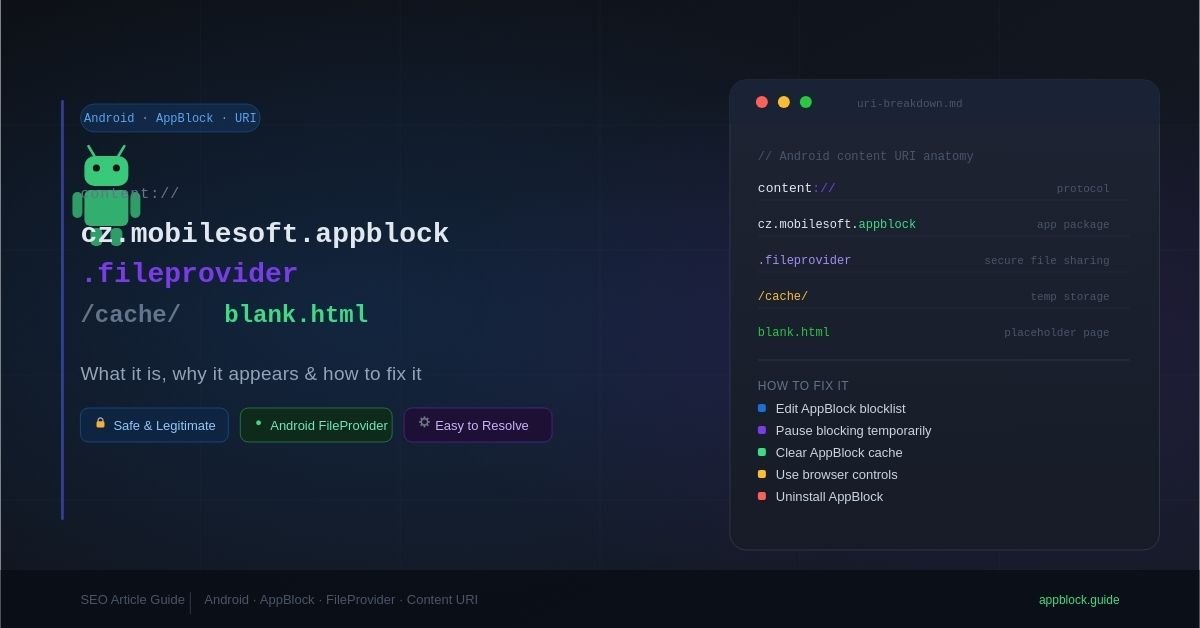
The full path — content://cz.mobilesoft.appblock.fileprovider/cache/blank.html — follows Android’s standard content provider format. Here’s what each segment means:
| URI Segment | What It Represents |
|---|---|
content:// | Android’s protocol for accessing data from a content provider (similar to https:// for websites) |
cz.mobilesoft.appblock | The package name (unique ID) of the AppBlock app, developed by MobileSoft |
.fileprovider | Declares this is a FileProvider — Android’s secure way to share files between apps |
/cache/ | Points to the app’s temporary cache storage folder |
blank.html | The name of the placeholder file that loads instead of the blocked website |
Together, the path uniquely and securely identifies a temporary file inside AppBlock’s private storage. This is standard Android architecture — not a bug or security risk.
Why Does This URI Appear on Your Device?
There are a few common situations where you’ll encounter this URI:
- Active website blocking — You’ve set up AppBlock to block certain websites or categories. When you navigate to one, AppBlock intercepts the request and loads
blank.htmlinstead. - Browsing history entries — Each blocked navigation attempt gets logged in your browser history as a visit to this content URI path.
- App or system logs — Developers and advanced users checking device logs during debugging will see this URI recorded when AppBlock enforces a restriction.
- Chromebook users — Chrome OS devices running Android apps can also trigger this path, since AppBlock functions across Android-compatible environments.
Is content://cz.mobilesoft.appblock.fileprovider/cache/blank.html Safe?
Yes — this URI is completely safe and represents legitimate AppBlock behavior.
It references an internal, empty HTML file stored locally on your device. It is not:
- A virus or malware
- A phishing attempt
- An external connection to a third-party server
- Tracking your general browsing activity
AppBlock uses this approach specifically because it avoids external server requests, which makes the blocking response instant and privacy-friendly. The FileProvider pattern is also an Android security best practice — it prevents unauthorized access to the app’s private files.
How to Fix or Remove content://cz.mobilesoft.appblock.fileprovider/cache/blank.html
If this URI is appearing when you don’t want it to — or if it’s causing unexpected issues — here are your options.
Option 1: Review Your AppBlock Blocklist
The most targeted fix. If a website is being blocked that you actually want to visit, simply remove it from the blocklist.
- Open the AppBlock app
- Tap the gear icon to open settings
- Navigate to your blocked websites or rules
- Remove or disable any entry causing the unwanted redirect
- Save your changes and try visiting the site again
Option 2: Temporarily Pause AppBlock
If you need quick access to blocked content without changing your rules permanently:
- Pull down your notification shade
- Find the AppBlock notification in the list
- Tap Pause or disable blocking temporarily
- The content URI will stop appearing until you re-enable blocking
Option 3: Clear AppBlock’s Cache
If the blank page is appearing unexpectedly, even for sites that aren’t blocked, clearing the cache can reset the state.
- Go to Settings → Apps → AppBlock
- Tap Storage
- Select Clear Cache
- The
blank.htmlfile and other temporary data will be deleted - AppBlock will regenerate the files automatically during its next blocking operation
Option 4: Use Your Browser’s Built-in Content Controls
If you’d prefer not to use a third-party blocker at all, modern browsers offer built-in options:
- Chrome — Go to Settings → Privacy and Security → Site Settings to block specific sites
- Firefox — Use built-in tracking protection or install a browser extension for more control
Option 5: Uninstall AppBlock
If you no longer use or need AppBlock, uninstalling it will permanently stop this URI from appearing.
- Go to Settings → Apps
- Find and tap AppBlock
- Tap Uninstall
- Confirm the removal
Understanding Android Content Providers and FileProviders
To fully understand this URI, it helps to know a little about how Android manages data sharing between apps.
What Is a Content Provider?
A Content Provider is an Android component that lets apps expose data to other apps in a controlled, secure way. When an app uses the content:// scheme, it’s accessing data through this system rather than reading files directly.
This is intentional. Direct file access in Android can create security vulnerabilities. Content Providers ensure that only authorized apps can read or write specific data.
What Is a FileProvider?
A FileProvider is a specialized type of Content Provider, built specifically to share files securely. AppBlock uses a FileProvider to serve the blank.html file to the browser. The browser requests the file, AppBlock’s FileProvider grants temporary access, and the blank page loads.
The naming pattern — [package-name].fileprovider — is a standard Android convention. You’ll see this pattern in many apps that share files.
Why Cache Storage?
The /cache/ part of the path tells us that blank.html lives in AppBlock’s cache directory. Cache directories on Android are meant for temporary, regeneratable files — not critical data. This makes sense for a placeholder HTML file that’s only needed while blocking is active.
Practical Examples of When This URI Appears
Here are real-world scenarios to help you recognize the context:
Scenario 1 — Focus Mode You’ve set AppBlock to block social media during work hours. At 2 PM, you try to open Instagram. AppBlock intercepts the request and your browser briefly shows content://cz.mobilesoft.appblock.fileprovider/cache/blank.html before displaying a blank or message screen.
Scenario 2 — Parental Controls A parent has set AppBlock rules to block gaming websites on a child’s tablet. The child tries to access a blocked URL and sees a blank page. The parent, checking browser history, sees multiple entries of the content URI.
Scenario 3 — Developer Debugging A developer testing AppBlock integration on a Chromebook checks Android device logs and sees the FileProvider URI being referenced as expected during blocking events.
Frequently Asked Questions
Can I delete blank.html manually?
You can clear AppBlock’s cache (see Option 3 above), which will remove the file. However, AppBlock will regenerate it the next time it needs to redirect a blocked page. Manual deletion without clearing through the app’s settings interface isn’t recommended.
Will this URI slow down my device?
No. The file is tiny, lives locally, and loads instantly. If anything, this approach is faster than redirecting to an external server.
Does AppBlock track my browsing through this mechanism?
The content URI itself does not track general browsing. AppBlock uses it only to serve the placeholder page when a blocked URL is accessed. However, AppBlock’s own analytics settings within the app are separate — review those in the app’s privacy settings if you have concerns.
Why does my browser history show dozens of these entries?
Each blocked navigation attempt creates a new history entry. If you browse frequently and have many rules active, the URI can accumulate quickly. You can clear your browser history to remove these entries, or adjust AppBlock’s rules to reduce false-positive blocking.
Conclusion
The URI content://cz.mobilesoft.appblock.fileprovider/cache/blank.html is not an error, a virus, or a system problem. It’s exactly what it looks like: a local, temporary HTML file that AppBlock serves to your browser whenever it blocks a website.
Understanding the structure of this URI — the content:// protocol, the FileProvider authority, the cache path, and the blank HTML file — gives you a clearer picture of how Android apps manage secure, fast file sharing.
If you want to stop seeing it, your options range from adjusting AppBlock’s blocklist to clearing the app’s cache or switching to browser-native content controls. All of these are simple to do from your device settings.
The next time this URI appears on your screen, you’ll know exactly what’s happening — and exactly what to do about it.